Robotmk and RCC-Environments in air-gapped environments
How to prepare RCC environments and transfer them to isolated test hosts via ZIP archive.
RCC was one of the game changers with the introduction of Robotmk V2 - it takes care of the entire lifecycle of the Python environments that Robot Framework needs.
That’s super convenient, but there’s a catch: RCC assumes that the test host has access to the internet to download the required packages. This article describes a very practical way to use it in isolated environments.
The problem: No internet on the test host
By default, the process of building an RCC environment works like this:
- Checkmk-Agent starts => starts the Robotmk Scheduler
- Scheduler Phase 1: Build the environments
- Read the config => determine all test suites to be executed
- Per test suite: Call RCC, which reads the
robot.yaml(which refers toconda.yaml, where the dependencies are listed) - RCC determines the required packages and downloads everything directly from the internet - from PyPI, Conda-Forge, npmjs, etc.
- (Scheduler Phase 2: Execute the tests)
This works fine as long as the test host has unrestricted internet access.
In practice, however, it often looks quite different.
Especially in larger companies, government agencies, or regulated industries, there are often environments where a direct download from the internet is simply not allowed - or technically not possible:
- Security policies: The test systems are in an isolated network segment. Outbound connections are not allowed.
- Air-gapped environments: Systems without any network connection to the outside - for example in industry, critical infrastructure (KRITIS), or military environments.
- Compliance requirements: Only explicitly approved software sources may be used. PyPI is not included.
- Restricted proxy: Outbound traffic goes through a proxy that blocks certain repositories.
In all these cases, the usual RCC workflow fails - and so does building the Robot Framework environment.
The detailed error log for building the environments is stored by the scheduler in these directories:
- Windows:
C:\ProgramData\checkmk\agent\robotmk_output\working\environment_building - Linux:
/var/lib/check_mk_agent/robotmk/scheduler/environment_building
Good to know: RCC has a special mode for exactly these scenarios, which is also supported by Robotmk. Let’s take a look at it now :-)
How RCC works internally – and why it matters
Before we dive into the practical steps, it’s important to understand a bit of background about RCC.
This is crucial for understanding the offline procedure.
Hololib and Holotree
RCC works internally with two concepts:
- Hololib: A collection of “catalogs” - abstract templates that describe which packages and binaries an environment contains.
- Holotree: The place where RCC instantiates a concrete, activatable environment (“Space”) from a catalog.
The workflow of RCC is simplified as follows:
- Create a catalog (Hololib)
- Create a concrete environment (Space in the Holotree)
When you normally run rcc task shell (create and activate) or rcc holotree vars (create only), both steps happen consecutively - RCC downloads the packages, builds the catalog, and instantiates an environment from it.
In offline mode, the two steps are separated: You build the catalog once on a machine with internet access, export it as a ZIP, and then distribute it to the test hosts without internet.
There, the Robotmk Scheduler imports the catalog and builds the environments (Spaces) - without a single external download.
Virtual Environments and Absolute Paths
When building Python environments, binary files are also compiled (independent of RCC).
These binary files, in turn, reference other files in the environment; they always have these paths absolute and fixed. In the case of an RCC environment, these are paths within the holotree path - a subfolder of ROBOCORP_HOME.
This is the reason why you cannot simply rename/move virtual environments, even those created “classically” with venv or conda - the paths compiled into the binaries will no longer be correct.
What does work is copying the entire environment to another machine, as long as the paths remain identical.
ROBOCORP_HOME
The environment variable ROBOCORP_HOME determines the directory where RCC stores its environment data - essentially the “working directory”.
As long as the paths in ROBOCORP_HOME are identical on the source and target machines, everything works smoothly.
Robotmk sets this RCC working directory for each user under which tests are to be run:
| Operating System | Execution Context | ROBOCORP_HOME |
|---|---|---|
| Windows | SYSTEM (headless) | C:\robotmk\rcc_home\current_user |
| Windows | Specific user | C:\robotmk\rcc_home\<username> |
| Linux | root (headless) | /opt/robotmk/rcc_home/current_user |
| Linux | Specific user | /opt/robotmk/rcc_home/<username> |
Note on user contexts:
On Windows, the scheduler runs by default asSYSTEM. Individual plans can be executed as a different user via Execute plan as a specific user.
On Linux, the scheduler user can be changed globally via Customize agent package (Unix) → Customize user. This is also the recommended approach.
The Solution: ZIP Archive
With the basics covered, let’s move on to the actual solution.
The approach using a ZIP archive (on Linux: .tar.gz) is the recommended method for air-gapped environments. It’s simpler than it sounds - the principle in brief:
- Build the catalog on a machine with internet access (we’ll call it the “reference system”) (OS and platform must be identical to the test hosts)
- Export it as a ZIP
- Manually copy the ZIP to the test host
- Configure the Robotmk Scheduler to import the catalog from the ZIP
In the following, the procedure is described using Windows as an example. On Linux, it works analogously, only the paths look different and instead of a ZIP archive, a
.tar.gzis used.
Step 1: Set ROBOCORP_HOME
Open a terminal on the reference system and set ROBOCORP_HOME to the same path where the scheduler will build the environment on the test hosts (this ensures the paths in the binaries match later).
(current_user is an internal placeholder for the user under which the scheduler will run - it does not need to be changed)
Windows - headless (SYSTEM):
C:\robots> set ROBOCORP_HOME=C:\robotmk\rcc_home\current_user
Windows - spezifischer Nutzer (z.b. alice):
C:\robots> set ROBOCORP_HOME=C:\robotmk\rcc_home\alice
Linux - headless:
user@host:~$ export ROBOCORP_HOME=/opt/robotmk/rcc_home/current_user
Linux - spezifischer Nutzer:
user@host:~$ export ROBOCORP_HOME=/opt/robotmk/rcc_home/alice
Step 2: Build the Catalog
Change to the directory of your Robot and run rcc holotree vars to build the Hololib environment.
C:\robots> cd webtest
C:\robots\webtest> rcc holotree vars
Step 3: Prepare ZIP Export
First, check if the catalog was created correctly. To do this, determine the “Blueprint” hash of the conda.yaml…
C:\robots\webtest> rcc holotree hash conda.yaml

Blueprint hash for [conda.yaml] is MCf6XqQnXsKIwtEn
…and then look for it in the list of all available catalogs:
C:\robots\webtest> rcc holotree catalogs

Blueprint         Platform       Dirs    Files    Size     Relocate  Holotree path
---------         --------       ------  -------  -------  --------  -------------
MCf6XqQnXsKIwtEn  windows_amd64     358     4895     123M        28  c:\robotmk\rcc_home\current_user\ht
Now you can export the catalog to a ZIP file:
C:\robots\webtest> rcc holotree export -r robot.yaml --zipfile webtest-env.zip
Step 4: Copy ZIP to the Test Host
Copy the generated archive to the test host.
(For this step, you can of course also use tools like Ansible or Salt.)
# Target system:
C:\env-zip\webtest-env.zip
This path is freely selectable.
Step 5: Configure Robotmk Rule
Now configure the Bakery rule Robotmk Scheduler (Windows|Linux) as usual. Change the option Environment dependency handling from “Download” to Load from ZIP file and enter the path to your ZIP archive:
Now configure the Bakery rule Robotmk Scheduler (Windows|Linux) as usual.
Change the option Environment dependency handling from “Download” to Load from ZIP file and enter the path to your ZIP archive:
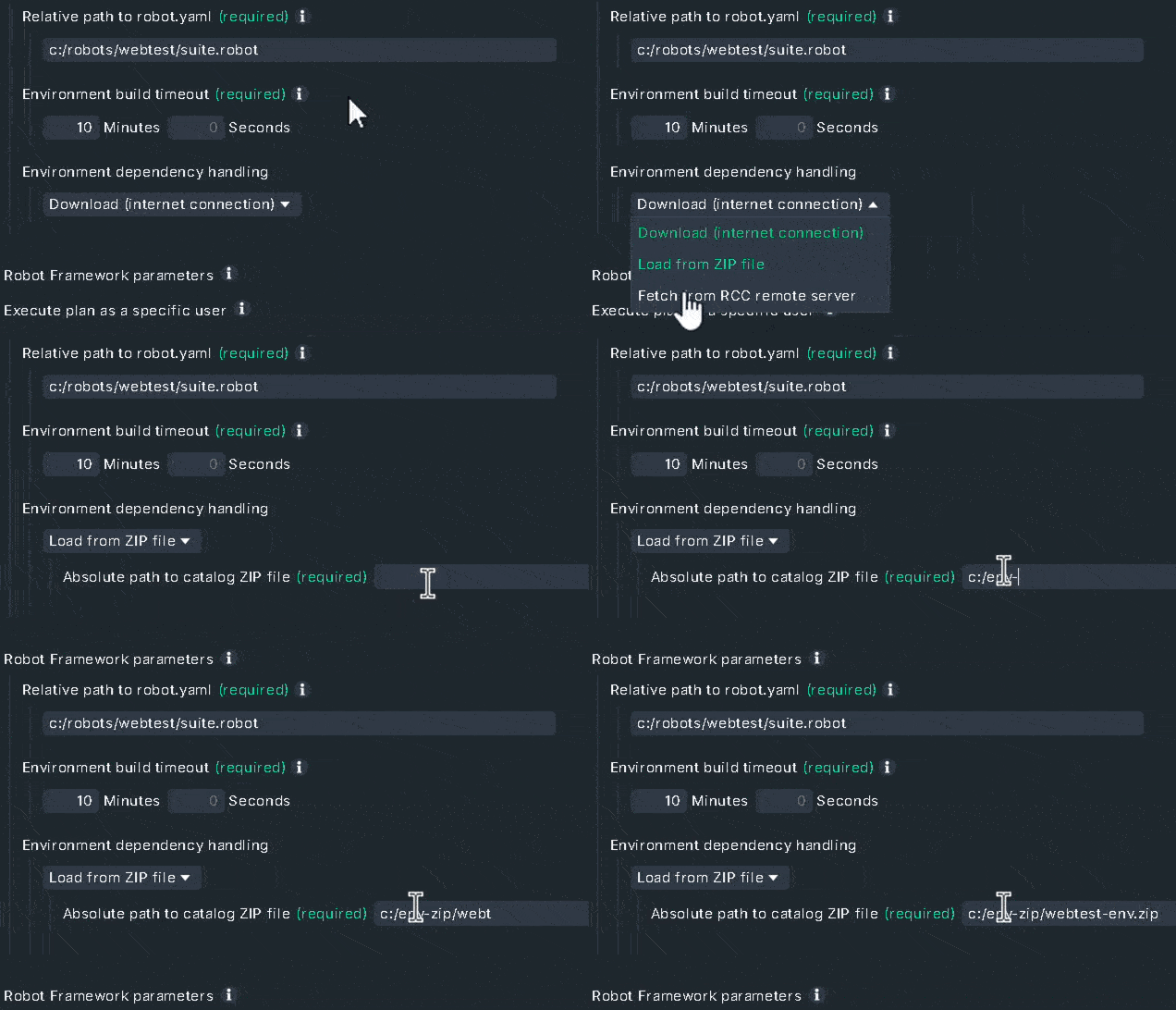
When the scheduler starts next time, it will import the catalog from the ZIP file within seconds and build the space (the actual environment) - completely without internet access.
Instead of downloading packages, only an archive is unpacked. This is not only 100% offline-capable but also performant.
This way, you can easily provide environments to test hosts without internet access - and still benefit from the convenience of RCC.
Summary
With the ZIP-based offline mode, you can also provide environments to test hosts without internet access.
Robotmk offers a pragmatic and well-functioning solution here. You build the catalog on a machine with internet access, export it as a ZIP, and then distribute it to the test hosts without internet.
There, the Robotmk Scheduler imports the catalog and builds the environments (Spaces) - without a single external download.
If you have any questions or are unsure about the setup, feel free to leave a comment or send me an email - I’m happy to help.